
Rental process
From first call to final invoice.
The counter takes the order. The yard prepares the machine. The driver delivers it. Follow one rental through Heyquip, with the customer, equipment and details staying together.
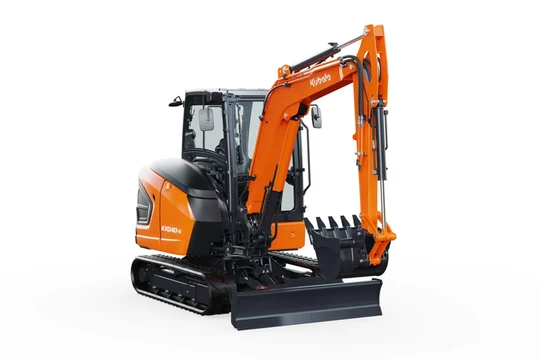
One illustrated rental follows John Doe and the same 4-ton Kubota KX040-5. The counter prepares the quote and agreement, the yard and delivery team handle the equipment, then the yard inspects it and the counter reviews invoicing. Each handoff is separate.
- Counter
Quote and digital signature.
- Yard and delivery
Prepare the same machine and hand it over.
- Return and office
Inspect, confirm the return and review the invoice.
01The request and the customer
Start with the customer you know.
A contractor needs a 4-ton excavator. Find their customer record while creating the order, then confirm the dates, jobsite and delivery needs.
A closer look
Understand the job
Ask what the customer needs to do, when they need the equipment and where it is going. You have the details to advise them and check the rental.
Find the customer
Select the existing customer in the order and open their account when you need more context. Their contacts, previous orders and balance are within reach.
The counter starts from a phone request for a 4-ton excavator. John Doe is selected inside order creation. His name and contact stay with the order; this does not create a reservation.
- A customer calls
The counter finds the existing contact.
- The customer joins the order
Keep customer and order context together.
02Equipment, dates and quote
Send a quote they can review.
Check the equipment, rental dates and rate. Put the proposal together, then email it to the customer with a PDF and a link to review it online.
A closer look
Build the rental quote
Check the branch, requested dates, equipment and rental rate. Include the delivery details for this job. The quote describes the rental you are proposing.
Send it by email
Review the recipient and send the quote from the order. The customer can open the proposal online or consult its PDF.
The same excavator is added to John Doe’s quote with October 26–28 example dates. The quote is sent by email with a PDF and a customer-view link. Sending is not signature, payment or reservation. No price or available stock is asserted.
- Choose the equipment
The equipment image identifies what the customer is quoting.
- Keep the rental dates
The dates appear beside the same equipment.
- Send by email
The counter sends the quote to the customer.
- The customer receives the quote
The email includes a PDF and a link to review.
03Signature and payment terms
Review it. Sign it.
The customer reviews the rental agreement and signs online. Confirm the deposit, card payment or approved account terms before the yard takes over.
A closer look
Review and sign
Read the agreement, add a signature and full name, then confirm. The accepted terms and signature are recorded.
Confirm the payment terms
Follow the card-payment or deposit path for this rental, or confirm the terms of an account approved by your shop. You know how the rental will be paid.
Confirm the rental
Complete the reservation and equipment confirmation steps for the order. The yard can pick up the confirmed work.
The customer reviews the agreement, adds a signature and full name, accepts the terms and selects Confirm. The resulting acceptance is not proof of payment or reservation.
- Review the contract
The agreement retains the customer, equipment and dates.
- Sign and confirm
The customer adds a signature and full name. Confirm records acceptance of the terms.
- Terms accepted
Payment remains a separate step.
04The yard gets ready
Send out the right machine.
The yard sees which machine to prepare and how it will leave. Check it, prepare it and record when it is ready for handoff.
A closer look
Identify the machine
Open the rental to prepare and check the equipment identity and handoff details. The team knows which machine this customer needs.
Prepare it for departure
Prepare and check the equipment, then update its preparation status. The counter and delivery team can see the recorded progress.
The yard prepares the assigned 4-ton excavator. The same equipment identity follows into the loading and delivery handoff. The physical preparation and loading are separate from software status changes.
- Yard preparation
Work from the assigned equipment and rental details.
- Loading and handoff
The same machine is prepared for delivery.
05Delivery and condition photos
Keep the handoff with the rental.
Load the excavator and deliver it to the jobsite. Keep the customer, machine and address together, with condition photos attached to the rental.
A closer look
Plan the delivery
With Dispatch enabled, plan the delivery request and stop. Load and deliver the selected machine. The planned stop keeps its order, customer and equipment context.
Document the handoff
Record the stop progress and add the delivery condition photos to the rental. Your team can review the handoff photos with the rental details.
The delivery request identifies John Doe and the same excavator. At the physical jobsite handoff, the delivery person takes condition photos. The photo panel is an editorial explanation, not a claim about an in-app camera, automatic storage, live GPS or a driver app.
- Delivery request
Keep the customer and equipment visible.
- At the jobsite
Photograph the equipment’s condition at the physical handoff.
06Off-rent and pickup
They’re finished. Arrange the pickup.
The customer lets you know the excavator is no longer needed. Review the request, agree on the pickup and send the driver for the same machine.
A closer look
Review the customer’s request
Open the customer’s message with the rental details, or review their return request from the portal. Confirm the requested end and what needs to come back.
Arrange the pickup
Agree on the pickup plan and collect the equipment from the jobsite. The machine comes back through a planned handoff.
John Doe messages that the excavator is no longer needed. Rental staff review and confirm the request, then arrange pickup. A message is not an automatic rental-end date change, physical return or completed collection.
- The customer writes
A message starts the conversation about ending the rental.
- Staff review
The rental shop confirms what happens next.
- Arrange pickup
Pickup and physical return happen separately.
07Return and inspection
Know what came back.
Receive the excavator and inspect its condition. Keep the return and any inspection or repair follow-up with the machine.
A closer look
Receive and inspect
Identify the returned machine, check its condition and record the physical return. The team can distinguish what is back from what is still out.
Follow up on what you find
Complete the inspection and record any work the machine needs. The counter can review the return while the workshop follows up on the equipment.
The yard receives the same excavator, inspects its condition and records findings. The counter confirms the return before reviewing final invoicing. An off-rent message is not proof that the machine has returned.
- Physical return
Identify the machine arriving back at the yard.
- Yard inspection
Review condition and record findings.
- Counter confirmation
Confirm the return before reviewing final billing.
08Invoice and balance
Close with a clear invoice.
Confirm the return, review the rental period and charges, then complete the invoice. Apply payments and deposits so you can see what remains owing.
A closer look
Review the final charges
Confirm the return details and review the equipment, rental period and recorded charges for the invoice. The invoice stays tied to the rental it explains.
Settle or follow the balance
Apply the actual payment, deposit or available account credit to the relevant invoice. See what has been paid and what remains on the customer’s account.
The invoice retains the rental reference, customer, rental period and recorded charges. Payment or account follow-up depends on the agreed terms. The illustration shows neither an invented amount nor a successful payment.
- Keep the rental reference
The same rental is the invoice’s source.
- Review the charges
Review the rental period and recorded charges.
- Follow the balance
Payment or credit-account follow-up remains distinct from invoicing.
Your business does more
Sell or repair equipment, too?
A sale item can go with a rental. Counter sales and customer repairs also have their own workflows.
Before changing systems
Your questions. Clear answers.
Will it slow down the counter?
Let’s test a rental your team handles every day. Follow the customer, equipment, quote and payment steps in the real platform, then compare the work with your current process.
Can customers rent on account instead of paying by card?
Yes, with a credit account approved by your shop and the appropriate setup. Card payments and deposits are separate options. Your team confirms the terms for the rental.
Does emailing a quote reserve the equipment?
Sending a quote is different from reserving equipment. An optional hold may be used, then your team follows the applicable acceptance and reservation steps.
What happens when a customer requests off-rent?
Your team reviews the request and arranges the pickup. A portal return request records the requested end and return-ready status; a message needs staff action. Neither replaces the physical return and inspection.
Can we sell supplies with the rental?
Yes. Rental and sale items can share a customer order. Rental items keep their dates and sale items keep their quantities, so you can handle both during the same visit.
See your own workflow
Bring one of your everyday rentals.
We’ll follow it with your team, from the first request to the final invoice. Include your account terms, delivery needs and return checks.
Talk about your team