
Fleet and inventory
Know what can go out.
Find each machine and check the dates before you commit. Keep rental equipment, sale stock and parts connected to their branch, movements and purchase records.
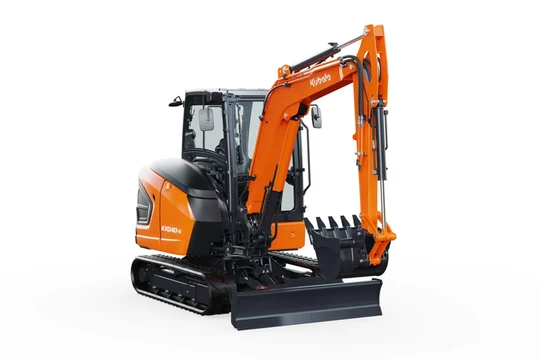
The illustrated EX-04 is a Kubota KX040-5 at Branch A. October 26–28 are requested rental dates, not proven availability. A transfer request leaves the recorded branch unchanged. After a separate physical-move handoff and explicit Mark Delivered action, the recorded branch becomes B. Supplier equipment and purchased EX-05 are separate examples in later chapters.
- Identify the machine
EX-04 is recorded at Branch A.
- Keep the requested dates
October 26–28 is a request, not a reservation.
- Request the transfer
The pending transfer does not change the branch record.
- The physical move
Transport is separate from the request.
- Record delivery
Mark Delivered updates the same unit to Branch B.
- Keep the connected context
The unit, requested rental period and completed movement remain distinct.
01Products, stock and machine history
One product. Each machine identified.
Keep the product description and each physical machine’s identity distinct. See the branch, recorded location and work history, with the right stock type for rental equipment, sale items or parts.
A closer look
Find the product and unit
Find the product, then identify the individual machine by its inventory ID or serial number. You know which physical machine the record describes.
Read the stock type
Distinguish individually tracked units from quantity-based rental stock, sale stock and parts. The team uses the stock record that fits the item.
Review the machine’s history
Open the unit’s linked rentals, work orders and recorded readings when you need context. The next decision can use what was recorded for that machine.
The Kubota KX040-5 product contains the illustrated unit EX-04. Selecting that unit opens its individual record, where its inventory identity, recorded Branch A and linked work-order and rental references belong. No serial number, meter value or historical event is invented.
- Start from the product
The product model and physical unit are different records.
- Open EX-04
The selected image and inventory ID move together.
- Read the recorded branch
EX-04 is at Branch A in this illustrative record.
- Consult the unit’s history
Work orders and rentals stay linked to this unit.
02Requested dates and branch
Check the dates before you commit.
A machine in the catalogue is not a promise for every date. Choose the requested rental period and branch, then review availability, bookings and the equipment’s recorded state.
A closer look
Start with the requested period
Choose the product, branch and rental start and end dates. The availability check relates to the customer’s actual request.
Review the equipment
Check the date-specific availability and the relevant machine’s bookings and recorded state. You have the context to choose equipment before confirming the rental.
The counter chooses Branch A and an October 26–28 request for the KX040-5. The date panel is carried into the machine’s availability-timeline context. Bookings and recorded equipment state are separate checks. The illustration does not display a free/busy calendar, available count or reservation result.
- Choose the request
Use the requested period and Branch A.
- Keep the range with EX-04
October 26–28 stays tied to the selected equipment context.
- Review the relevant records
Consult bookings and recorded state before confirming a rental.
03Inter-branch equipment transfers
Move it between branches.
Need equipment from another location? Request the transfer with its source and destination, then record the completed move. The machine’s branch changes when the transfer is recorded as delivered.
A closer look
Request the transfer
Select the equipment at the source branch, choose the destination and add the requested date. For quantity-based stock, enter the quantity needed. The transfer request records what needs to move and where.
Record the physical move
Move the equipment and record the transfer’s progress through delivery. The completed transfer updates the unit’s branch or the transferred quantities at both branches.
EX-04 starts at Branch A. Request transfer targets Branch B and creates a Pending request, while the unit remains at A. After a separate physical transport and In Transit state, staff select Mark Delivered. Only then does the same unit’s branch record become B. This is recorded movement, not live GPS.
- Choose the destination
Move EX-04 from A to B, not a copied or new machine.
- Keep the request pending
Request transfer leaves EX-04 recorded at A.
- Transport the equipment
After pickup, the transfer is in transit.
- Record the delivered transfer
Mark Delivered is the cause of the recorded branch change.
- The same unit at Branch B
EX-04 keeps its identity, with the completed transfer in its movement record.
04Equipment delivery planning
Turn requests into planned stops.
When Dispatch is enabled, plan where equipment is picked up and delivered. Customer delivery requests keep their order, customer and equipment details with the planned stops.
A closer look
Plan the route
Select the requests, arrange the stops and assign the planned work. Each request keeps its equipment details. Customer deliveries also keep their linked order and customer.
Record the stop’s progress
Record arrival and the completed delivery or pickup through the applicable actions. The team can distinguish a planned stop, an arrival and a completed handoff.
When Dispatch is enabled, a delivery request for EX-04 and John Doe is assigned to a route and its pickup and drop-off stops are arranged. The source pickup is at Branch B, before the jobsite drop-off. I’m here records arrival only. A separate Picked Up action records source collection and makes the request In Transit. This excerpt does not show completed delivery or a customer off-rent collection.
- Keep the request intact
EX-04 and John Doe stay with the delivery request.
- Assign the request to a route
The dispatcher plans the request before arranging its stops.
- Arrange pickup before drop-off
Branch B is the source; the jobsite is the later drop-off.
- Record arrival
I’m here records presence, not completed handling.
- Record the actual pickup
Picked Up records source collection separately.
- In transit, not delivered
The later jobsite drop-off is still a separate stop.
05Rerentals and subrentals
Bring in equipment. Keep the details.
Rerent equipment from a supplier when your fleet cannot cover the job. Add the subrental to the customer order, keeping supplier dates and costs separate from customer dates and rates.
A closer look
Record the supplier’s equipment
Add the subrental to the customer order with its equipment description, supplier and reference details. The rented-in equipment stays linked to the customer’s job.
Keep both sets of terms
Record the supplier’s rental period and costs alongside the customer’s dates and rates. The office can review the supplier side and the customer side without confusing them.
This is an additional supplier-owned excavator, not EX-04. Add subrental brings its description into John Doe’s customer order. At initial addition the illustrated supplier and customer periods both use October 26–28. Vendor and customer price labels stay separate, with no amounts, margin, supplier search or ownership conversion shown.
- Introduce the supplier’s equipment
This rented-in machine is separate from the shop’s EX-04.
- Add the subrental to the order
The supplier equipment stays linked to John Doe’s job.
- Keep both sets of terms
Supplier and customer periods and price fields are separate.
06Purchase orders and receiving
Order it. Receive what arrives.
Order equipment, parts and sale stock from your vendors. Record the goods that actually arrive, including partial deliveries, so the received quantities or new unit records reflect the receipt.
A closer look
Prepare and send the purchase order
Choose the vendor, receiving branch, products and quantities, then send the purchase order when it is ready. The team can see what has been ordered and where it is expected.
Receive the goods
Record the items and quantities received. Add the individual machine details when receiving serialized equipment. The receipt adds the relevant stock or unit records, with the remaining order still visible.
A purchase order requests another KX040-5 for Branch B. Mark sent records the order as sent but creates no equipment. After a separate physical-arrival handoff, Receive opens the receiving entry. The illustrative EX-05 inventory ID is entered there. Only Save creates the new received unit and purchase relationship. EX-04 and the supplier rerental are not changed, and readiness is not guaranteed.
- Order the product
The receiving branch is B; there is no new unit record yet.
- Record the purchase order as sent
Sent does not add stock.
- The goods physically arrive
Ordering and receiving are separate events.
- Enter the receiving details
Receive opens the form; EX-05 is the new unit’s example identity to save.
- Save the actual receipt
The receiver confirms the entry with Save.
- A new received unit
EX-05 now has a unit record and purchase link, not a ready-to-rent promise.
Your equipment, your questions
The context to make the call.
Can I manage rental equipment, sale stock and parts together?
Yes. Heyquip distinguishes rental and sale stock, individually tracked machines and quantity-based items, including parts. The product record and each physical unit keep their own roles.
Can I check equipment across branches?
Yes. Review the stock by branch and check availability for the requested dates. If equipment needs to move, use an inter-branch transfer and record the completed movement.
Does requesting a transfer change the machine’s branch?
Not by itself. The request records the source, destination and need. The branch record changes when the completed transfer is recorded through its delivery workflow.
Does Heyquip find a rerental supplier for me?
You choose the supplier. Heyquip records the subrental with the customer order, including supplier details, dates, costs and customer rates. It does not automatically search other shops for stock.
Does sending a purchase order add equipment to stock?
No. The purchase order records what you ordered. Receiving records what arrived and adds the relevant quantities or individual machine records. A partial receipt leaves the remaining order to follow.
Is the recorded location live GPS?
No. Equipment records show the recorded branch and location. Dispatch plans routes and records stop progress when enabled; those records are not live machine or driver GPS.
The work your team does
Bring a machine your team knows.
Check its record and the dates you need. Then follow a branch transfer, a delivery or a receipt to see what your counter, yard and office each need to know.
Talk about your team